Currency Converter Using Python Tkinter (Real-Time Exchange Rates) — Full Step-by-Step Tutorial
A currency converter is one of those “small” apps that teaches a lot of real-world Python skills in one project. You get to combine GUI development (Tkinter), API integration (requests), data handling (JSON), and user-friendly UX features like swap, refresh, clear, and even an on-screen number pad.
In this tutorial, you’ll build a Currency Converter desktop app in Python using Tkinter that:
- Fetches live currency exchange rates from a free online API
- Lets the user convert an amount between any two supported currencies
- Shows the converted value and the current rate (e.g.,
1 USD = 0.92 EUR) - Includes Swap (reverse currencies), Refresh Rates, and Clear actions
- Adds an on-screen numeric keypad with a backspace key
- Saves the last-used amount and selected currencies to a local JSON file and restores them next time
By the end, you will have a complete, working project and the full code will be included at the end.
What You Will Build
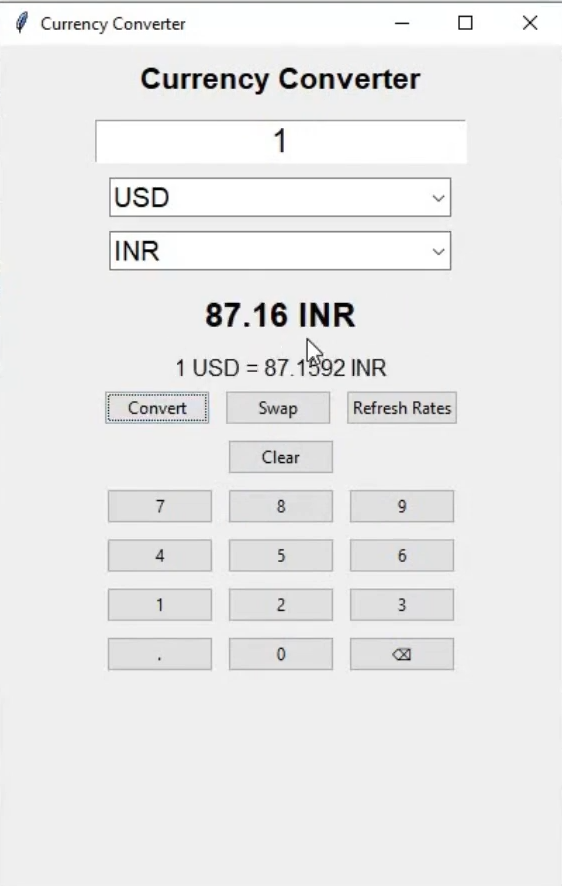
You will build a clean, simple desktop application that looks like a mobile-friendly converter screen. It has a title, an amount box, two dropdowns (From/To currency), a big result label, a line showing the conversion rate, and a set of buttons to control behavior. Underneath, you’ll add a numeric keypad so users can enter values without typing.
This project is suitable for:
- Students learning GUI development, API calls, and code organization
- Professionals who want a fast internal utility or a portfolio-ready desktop tool
- Developers who want a clean example of separating logic (conversion) from UI (Tkinter)
Prerequisites
To follow along comfortably, you should have:
- Python 3.9+ installed (Python 3.10/3.11/3.12 also works)
- A code editor such as:
- VS Code (recommended)
- PyCharm
- Anaconda + Spyder/Jupyter (optional)
- Basic understanding of Python functions, classes, and exception handling
- A little familiarity with Tkinter widgets helps, but we’ll explain as we build
You’ll also need one external library:
requests(for calling the exchange-rate API)
Install it using:
pip install requests
Project Idea and Architecture
Before we touch the UI, let’s get clear on what we’re building from a “software design” perspective. A currency converter app looks simple on the surface—two currency dropdowns, a number box, and a result—but behind that, you’re juggling multiple concerns: getting live data, keeping the interface responsive and user-friendly, handling invalid inputs, and remembering user choices.
The easiest way to keep this project clean (and the way professionals typically do it) is to split the project into two layers:
- A core logic layer that knows how to fetch and store rates and perform conversions.
- A GUI layer that knows how to draw the interface and respond to user events (button clicks, closing the window, etc.).
That’s exactly what your code does using two classes:
CurrencyConverter: talks to the online API, stores rates inself.rates, and performs conversions.CurrencyConverterGUI: builds the Tkinter interface, reads values from widgets, calls the converter, and updates labels.
This separation matters more than it may appear. It makes the project readable for students, maintainable for professionals, and extendable for developers. For example, you could later replace Tkinter with another GUI toolkit (PyQt, Kivy) and still reuse the same CurrencyConverter class with minimal changes.
There is also a very important GUI concept happening here: Tkinter apps are event-driven. That means your program doesn’t run top-to-bottom like a normal script. Instead, Tkinter starts an event loop (root.mainloop()), and your code runs in response to events—button clicks, window close actions, and user inputs. Keeping your event callbacks (“Convert”, “Swap”, “Refresh”, keypad clicks) small and focused is the key to a professional-feeling app.
Import Required Modules (Why Each One Matters)
You already imported the correct modules:
import tkinter as tk
from tkinter import ttk, messagebox
import requests
import json
import os
Code language: JavaScript (javascript)
Now let’s understand them a little deeper in practical terms.
Tkinter gives you the building blocks of a desktop UI—windows, text fields, frames, labels. You used tk for basic widgets like Entry and Frame. Then you used ttk for modern themed widgets (Combobox and Button) because they look more professional across platforms.
The messagebox module is a small but powerful tool: instead of printing errors in the console (which many end users never see), you show a proper pop-up. That’s what makes your app “desktop-app friendly” and not just a developer script.
The requests library is used because it simplifies HTTP work. You could do API calls using Python’s built-in urllib, but requests is cleaner and more readable, which is why it’s the industry default for quick HTTP tasks.
The json and os modules together power the “remember my last settings” feature. os.path.exists() checks if your config file is present; json.load() and json.dump() let you read and write simple structured data without a database.
Define Constants (API_URL and CONFIG_FILE)
Your constants are:
API_URL = "https://open.er-api.com/v6/latest/USD"
CONFIG_FILE = "currency_config.json"
Code language: JavaScript (javascript)
Constants are a small design decision that makes a big difference. When you keep your API endpoint and configuration file name at the top, you avoid “magic strings” scattered throughout the program. That’s important for maintainability: if you change the API later, you update one line instead of hunting through the code.
Why use USD as the base?
The endpoint returns rates relative to USD, which means the API gives you a dictionary where each entry looks like:
rates["EUR"] = 0.92(meaning: 1 USD = 0.92 EUR)rates["INR"] = 83.40(meaning: 1 USD = 83.40 INR)
Even if the user wants INR → EUR, we can still compute it. The professional approach is to convert everything through the base currency (USD) internally. This keeps the system consistent and avoids needing a separate endpoint per currency.
Build the Conversion Engine (CurrencyConverter)
This class is the “backend” of your desktop app. It does not care about buttons, labels, or layout. It only cares about data and math.
Constructor and Attributes
class CurrencyConverter:
    def __init__(self):
        self.rates = {}
        self.currencies = []
        self.load_rates()
This constructor sets up two key data structures.
self.rates is a dictionary that will eventually hold hundreds of currency rates. Dictionaries are the right choice here because lookups like self.rates["INR"] are extremely fast.
self.currencies is simply a list of currency codes such as ['AED', 'AFN', 'ALL', ...]. This list is used by the UI dropdowns. Keeping it inside the converter is smart because it guarantees that the dropdown options always reflect whatever the API returns.
Finally, calling self.load_rates() inside __init__() means the object becomes usable immediately after creation. In desktop apps, that reduces “missing state” bugs.
Fetching Rates from the API
def load_rates(self):
    try:
        response = requests.get(API_URL)
        data = response.json()
        self.rates = data["rates"]
        self.currencies = sorted(self.rates.keys())
    except Exception as e:
        messagebox.showerror("Error", f"Failed to fetch rates: {e}")
Code language: PHP (php)
This function does a lot in very few lines, so it deserves a deeper explanation.
requests.get(API_URL) sends an HTTP GET request to the endpoint. If the request succeeds, you get a response object. Calling response.json() converts the JSON response into a Python dictionary.
From that dictionary, you pull out data["rates"] and store it in self.rates. That is now your in-memory database of rates.
Then you create self.currencies = sorted(self.rates.keys()). This step is not just for aesthetics. A sorted list improves usability because users can find currency codes quickly in the dropdown.
The try/except block is important because network operations are the most failure-prone part of desktop apps. Internet could be off, the API could be temporarily down, the response could be malformed, or your firewall could block it. Instead of crashing, your app shows a friendly error message.
Implement Conversion Logic (The Core Math)
Here is your conversion method:
def convert(self, from_currency, to_currency, amount):
    try:
        amount_in_usd = amount / self.rates[from_currency]
        return amount_in_usd * self.rates[to_currency]
    except KeyError:
        messagebox.showerror("Error", "Currency not supported.")
    except ZeroDivisionError:
        messagebox.showerror("Error", "Invalid conversion rate.")
Code language: PHP (php)
At first glance, it might look “too simple,” but it’s mathematically correct and widely used.
The idea: Convert → USD → Target
Because your API rates are based on USD, you first translate the user’s amount into USD. Then you translate USD into the target currency.
amount / rates[from_currency]gives USD.usd_amount * rates[to_currency]gives the target currency.
A realistic example
Imagine:
rates["USD"] = 1rates["INR"] = 83.40(1 USD = 83.40 INR)rates["EUR"] = 0.92(1 USD = 0.92 EUR)
If the user enters 834 INR and converts to EUR:
- USD step:
834 / 83.40 = 10 USD - EUR step:
10 * 0.92 = 9.2 EUR
This two-step method is stable and avoids confusion.
The error handling is also meaningful. If a currency code is missing, self.rates[from_currency] throws a KeyError. If a rate is zero (rare but theoretically possible in bad data), division would fail. Your messageboxes keep the experience user-friendly.
Build the GUI Class (CurrencyConverterGUI)
Now you move from logic to interface. This is where Tkinter shines: you can build a full desktop tool with only standard Python modules.
Here is the constructor:
class CurrencyConverterGUI:
    def __init__(self, root):
        self.converter = CurrencyConverter()
        self.root = root
        self.root.title("Currency Converter")
        self.root.geometry("400x600")
        self.load_config()
        self.create_widgets()
Notice the order. First, you create a converter so rates are available. Then you configure the window (title, geometry). Then you load saved settings from disk. Finally, you build widgets.
That order matters. If you loaded the config after building widgets, you’d need extra code to update the widgets. This clean sequence is a sign of thoughtful design.
Also notice something subtle: you’re storing the passed-in root window as self.root. That’s a common Tkinter pattern that helps keep your methods consistent.
Designing the UI in create_widgets (Layout + UX)
Tkinter layout is a huge topic, but your app uses the two most practical layout approaches:
pack()for vertical stacking (great for forms)grid()inside a frame for structured button rows/columns
This hybrid strategy is common in production apps because it keeps layout flexible while still allowing precise alignment where needed.
Title Label
title_label = ttk.Label(self.root, text="Currency Converter", font=("Arial", 16, "bold"))
title_label.pack(pady=10)
Code language: PHP (php)
This sets the first impression. A bigger, bold heading makes your app look like a real product rather than a demo window. pady=10 adds breathing space—small detail, big UX improvement.
Amount Entry
self.amount_entry = tk.Entry(self.root, font=("Arial", 18), justify="center")
self.amount_entry.pack(pady=5)
self.amount_entry.insert(0, self.config.get("amount", ""))
Code language: PHP (php)
The amount field uses tk.Entry instead of ttk.Entry. That’s fine; both work. The font is intentionally large because this is the primary input. Center alignment feels natural for numeric entry, similar to calculator apps.
The insert() line is where your “remember settings” feature becomes visible. If the config file stored an amount, it appears instantly. If not, you insert an empty string, leaving the field blank.
Currency Dropdowns
self.from_currency = ttk.Combobox(self.root, values=self.converter.currencies, font=("Arial", 14))
self.from_currency.pack(pady=5)
self.from_currency.set(self.config.get("from_currency", "USD"))

self.to_currency = ttk.Combobox(self.root, values=self.converter.currencies, font=("Arial", 14))
self.to_currency.pack(pady=5)
self.to_currency.set(self.config.get("to_currency", "EUR"))
Code language: PHP (php)
A Combobox is the best widget here because it is a controlled input: it encourages selection from valid currency codes instead of requiring the user to type exactly INR or EUR.
The .set() calls apply saved values if present; otherwise they fall back to sensible defaults. This ensures the app is immediately usable even on first run.
Output Labels: Result + Rate
self.result_label = ttk.Label(self.root, text="0", font=("Arial", 18, "bold"))
self.result_label.pack(pady=10)

self.rate_label = ttk.Label(self.root, text="", font=("Arial", 12))
self.rate_label.pack()
Code language: PHP (php)
You use two labels to communicate two different pieces of information.
The result label is bold and big because it’s the final answer users care about. The rate label is smaller because it’s explanatory, but it still matters: it builds confidence by showing what rate was used. That’s a professional UI move that separates beginner demos from real tools.
Action Buttons (Convert / Swap / Refresh / Clear)
Buttons are placed inside a frame and arranged using grid():
button_frame = tk.Frame(self.root)
button_frame.pack()
Code language: PHP (php)
The frame acts like a mini-container. Using grid() directly on the root window often becomes messy as UIs grow; putting related widgets in frames keeps the structure clean.
Convert
convert_btn = ttk.Button(button_frame, text="Convert", command=self.perform_conversion)
Code language: PHP (php)
The key detail is command=self.perform_conversion. Tkinter doesn’t continuously poll values; it calls your function when the event occurs.
Swap
swap_btn = ttk.Button(button_frame, text="Swap", command=self.swap_currencies)
Code language: PHP (php)
Swap is a convenience feature. It doesn’t change the amount; it simply exchanges the “from” and “to” dropdown selections.
Refresh Rates
refresh_btn = ttk.Button(button_frame, text="Refresh Rates", command=self.refresh_rates)
Code language: PHP (php)
This button gives the user control. Instead of relying on rates fetched at startup, they can refresh anytime. That’s especially valuable if the app stays open for long periods.
Clear
clear_btn = ttk.Button(button_frame, text="Clear", command=self.clear_fields)
clear_btn.grid(row=1, column=0, columnspan=3, pady=5)
Code language: PHP (php)
Clear resets the state quickly. Note how columnspan=3 makes it span the width of the row, improving usability.
Numeric Keypad (Calculator-Style Input)
A numeric keypad isn’t required for conversion, but it dramatically improves the “app feel.” It also demonstrates a real-world GUI pattern: generating repeated widgets from a data structure.
Keypad Layout Data
buttons = [
    ('7', 1, 0), ('8', 1, 1), ('9', 1, 2),
    ('4', 2, 0), ('5', 2, 1), ('6', 2, 2),
    ('1', 3, 0), ('2', 3, 1), ('3', 3, 2),
    ('0', 4, 1), ('.', 4, 0), ('⌫', 4, 2)
]
Code language: JavaScript (javascript)
This list is essentially your keypad blueprint. Each tuple says: “create a button with this text and place it at this row/column.” When you store UI layout like this, your code becomes scalable. Want to add 00 or C later? You add one tuple.
Creating Buttons in a Loop
for (text, row, col) in buttons:
    button = ttk.Button(num_frame, text=text, command=lambda t=text: self.on_number_click(t))
    button.grid(row=row, column=col, padx=5, pady=5)
Code language: PHP (php)
The lambda t=text: ... part is critical. Without it, Python’s late-binding behavior would cause every button to pass the last value from the loop. Capturing the current text into t ensures each button sends its own character.
Handling Keypad Clicks
def on_number_click(self, char):
    if char == '⌫':
        self.amount_entry.delete(len(self.amount_entry.get())-1, tk.END)
    else:
        self.amount_entry.insert(tk.END, char)
Code language: PHP (php)
This function updates the Entry widget programmatically.
- For digits and dot, you append the character.
- For backspace, you delete the last character.
This is exactly how calculator apps behave, which makes your UI instantly intuitive.
Perform Conversion (Reading UI → Calling Logic → Updating UI)
This method is where the UI and conversion engine meet:
def perform_conversion(self):
    try:
        amount = float(self.amount_entry.get())
        from_cur = self.from_currency.get()
        to_cur = self.to_currency.get()

        result = self.converter.convert(from_cur, to_cur, amount)
        rate = self.converter.rates[to_cur] / self.converter.rates[from_cur]
        self.result_label.config(text=f"{result:.2f} {to_cur}")
        self.rate_label.config(text=f"1 {from_cur} = {rate:.4f} {to_cur}")
    except ValueError:
        messagebox.showerror("Error", "Please enter a valid numeric amount.")
Code language: PHP (php)
Let’s walk through it like a professional would during a code review.
First, you read the amount from the Entry widget using self.amount_entry.get(). Tkinter returns text, so you convert it to a float. That conversion step is also your first line of validation—if the string is not a valid number, float(...) raises ValueError.
Second, you read the selected currency codes from the comboboxes using .get(). These are strings like "USD", "INR", "EUR".
Third, you call self.converter.convert(...). This is where your architecture pays off: the GUI doesn’t need to know conversion math details; it just asks for a result.
Fourth, you compute the display rate. Even though conversion happens through USD internally, users prefer to see a direct rate between the chosen currencies. The formula:
rate = rates[to] / rates[from]
Code language: JavaScript (javascript)
is the correct way to derive a pair rate from base rates.
Finally, you update labels with .config(...). This is how Tkinter apps “render” changes: you don’t redraw the window; you update widget properties, and Tkinter refreshes the display.
The formatting :.2f ensures the result is readable. The rate uses :.4f to show more precision.
Swap Currencies (UX Shortcut)
def swap_currencies(self):
    from_cur = self.from_currency.get()
    to_cur = self.to_currency.get()
    self.from_currency.set(to_cur)
    self.to_currency.set(from_cur)
Code language: PHP (php)
Swap is a tiny feature with big usability impact. Users often compare two currencies back and forth, so a swap button reduces repeated manual work.
Refresh Rates (Reusing Your Backend Method)
def refresh_rates(self):
    self.converter.load_rates()
    messagebox.showinfo("Rates Updated", "Currency rates have been updated successfully.")
Code language: PHP (php)
You refresh rates by calling the same method used at startup. That’s good design because it avoids duplicating logic.
The info popup confirms success. In professional UX, feedback matters: users shouldn’t guess whether something happened.
Clear Fields (Reset State)
def clear_fields(self):
    self.amount_entry.delete(0, tk.END)
    self.result_label.config(text="0")
    self.rate_label.config(text="")
Code language: PHP (php)
Clear resets the Entry and output labels. This is especially useful after a conversion when the user wants to start fresh.
Persist Settings (Config File Save/Load)
This is where your app becomes noticeably more “product-like.” Remembering the last used settings is not hard, but it’s a hallmark of good desktop applications.
Loading config at startup
def load_config(self):
    if os.path.exists(CONFIG_FILE):
        with open(CONFIG_FILE, "r") as file:
            self.config = json.load(file)
    else:
        self.config = {}
Code language: PHP (php)
If the file exists, you load it into self.config. If not, you keep an empty dictionary so the rest of the code can safely call .get(...) without crashing.
Saving config
def save_config(self):
    config = {
        "amount": self.amount_entry.get(),
        "from_currency": self.from_currency.get(),
        "to_currency": self.to_currency.get()
    }
    with open(CONFIG_FILE, "w") as file:
        json.dump(config, file)
Code language: PHP (php)
This saves exactly what the user last typed and selected. Using JSON is perfect here: it’s human-readable, lightweight, and requires no extra dependencies.
Saving on window close
self.root.protocol("WM_DELETE_WINDOW", self.on_close)
Code language: CSS (css)
This line registers your own close handler. When the user clicks the window’s close button, Tkinter calls your on_close() method instead of immediately destroying the window.
def on_close(self):
    self.save_config()
    self.root.destroy()
Code language: CSS (css)
This ensures settings are saved every time the app closes, even if the user never clicks a “Save” button.
Run the Application
if __name__ == "__main__":
    root = tk.Tk()
    app = CurrencyConverterGUI(root)
    root.mainloop()
Code language: JavaScript (javascript)
This is the standard Tkinter startup pattern.
tk.Tk()creates the main window.- Your GUI class constructs the entire app.
root.mainloop()starts the event loop, waiting for user actions.
If you’ve built everything correctly, this is the moment where your Python script becomes a living desktop application.
Complete Code
import tkinter as tk
from tkinter import ttk, messagebox
import requests
import json
import os

# Constants
API_URL = "https://open.er-api.com/v6/latest/USD"
CONFIG_FILE = "currency_config.json"


class CurrencyConverter:
    def __init__(self):
        self.rates = {}
        self.currencies = []
        self.load_rates()

    def load_rates(self):
        try:
            response = requests.get(API_URL)
            data = response.json()
            self.rates = data["rates"]
            self.currencies = sorted(self.rates.keys())
        except Exception as e:
            messagebox.showerror("Error", f"Failed to fetch rates: {e}")

    def convert(self, from_currency, to_currency, amount):
        try:
            amount_in_usd = amount / self.rates[from_currency]
            return amount_in_usd * self.rates[to_currency]
        except KeyError:
            messagebox.showerror("Error", "Currency not supported.")
        except ZeroDivisionError:
            messagebox.showerror("Error", "Invalid conversion rate.")


class CurrencyConverterGUI:
    def __init__(self, root):
        self.converter = CurrencyConverter()
        self.root = root
        self.root.title("Currency Converter")
        self.root.geometry("400x600")
        self.load_config()
        self.create_widgets()

    def create_widgets(self):
        title_label = ttk.Label(self.root, text="Currency Converter", font=("Arial", 16, "bold"))
        title_label.pack(pady=10)

        self.amount_entry = tk.Entry(self.root, font=("Arial", 18), justify="center")
        self.amount_entry.pack(pady=5)
        self.amount_entry.insert(0, self.config.get("amount", ""))

        self.from_currency = ttk.Combobox(self.root, values=self.converter.currencies, font=("Arial", 14))
        self.from_currency.pack(pady=5)
        self.from_currency.set(self.config.get("from_currency", "USD"))

        self.to_currency = ttk.Combobox(self.root, values=self.converter.currencies, font=("Arial", 14))
        self.to_currency.pack(pady=5)
        self.to_currency.set(self.config.get("to_currency", "EUR"))

        self.result_label = ttk.Label(self.root, text="0", font=("Arial", 18, "bold"))
        self.result_label.pack(pady=10)

        self.rate_label = ttk.Label(self.root, text="", font=("Arial", 12))
        self.rate_label.pack()

        button_frame = tk.Frame(self.root)
        button_frame.pack()

        convert_btn = ttk.Button(button_frame, text="Convert", command=self.perform_conversion)
        convert_btn.grid(row=0, column=0, padx=5, pady=5)

        swap_btn = ttk.Button(button_frame, text="Swap", command=self.swap_currencies)
        swap_btn.grid(row=0, column=1, padx=5, pady=5)

        refresh_btn = ttk.Button(button_frame, text="Refresh Rates", command=self.refresh_rates)
        refresh_btn.grid(row=0, column=2, padx=5, pady=5)

        clear_btn = ttk.Button(button_frame, text="Clear", command=self.clear_fields)
        clear_btn.grid(row=1, column=0, columnspan=3, pady=5)

        self.create_number_buttons()

        self.root.protocol("WM_DELETE_WINDOW", self.on_close)

    def create_number_buttons(self):
        num_frame = tk.Frame(self.root)
        num_frame.pack()

        buttons = [
            ('7', 1, 0), ('8', 1, 1), ('9', 1, 2),
            ('4', 2, 0), ('5', 2, 1), ('6', 2, 2),
            ('1', 3, 0), ('2', 3, 1), ('3', 3, 2),
            ('0', 4, 1), ('.', 4, 0), ('⌫', 4, 2)
        ]

        for (text, row, col) in buttons:
            button = ttk.Button(num_frame, text=text, command=lambda t=text: self.on_number_click(t))
            button.grid(row=row, column=col, padx=5, pady=5)

    def on_number_click(self, char):
        if char == '⌫':
            self.amount_entry.delete(len(self.amount_entry.get())-1, tk.END)
        else:
            self.amount_entry.insert(tk.END, char)

    def clear_fields(self):
        self.amount_entry.delete(0, tk.END)
        self.result_label.config(text="0")
        self.rate_label.config(text="")

    def perform_conversion(self):
        try:
            amount = float(self.amount_entry.get())
            from_cur = self.from_currency.get()
            to_cur = self.to_currency.get()

            result = self.converter.convert(from_cur, to_cur, amount)
            rate = self.converter.rates[to_cur] / self.converter.rates[from_cur]
            self.result_label.config(text=f"{result:.2f} {to_cur}")
            self.rate_label.config(text=f"1 {from_cur} = {rate:.4f} {to_cur}")
        except ValueError:
            messagebox.showerror("Error", "Please enter a valid numeric amount.")

    def swap_currencies(self):
        from_cur = self.from_currency.get()
        to_cur = self.to_currency.get()
        self.from_currency.set(to_cur)
        self.to_currency.set(from_cur)

    def refresh_rates(self):
        self.converter.load_rates()
        messagebox.showinfo("Rates Updated", "Currency rates have been updated successfully.")

    def load_config(self):
        if os.path.exists(CONFIG_FILE):
            with open(CONFIG_FILE, "r") as file:
                self.config = json.load(file)
        else:
            self.config = {}

    def save_config(self):
        config = {
            "amount": self.amount_entry.get(),
            "from_currency": self.from_currency.get(),
            "to_currency": self.to_currency.get()
        }
        with open(CONFIG_FILE, "w") as file:
            json.dump(config, file)

    def on_close(self):
        self.save_config()
        self.root.destroy()


if __name__ == "__main__":
    root = tk.Tk()
    app = CurrencyConverterGUI(root)
    root.mainloop()