

If you use Claude for heavy-duty tasks—like analyzing massive codebases, reviewing dozens of financial PDFs, or managing complex writing projects—you already know how helpful the “Projects” feature is. Being able to upload your own files and give the AI a custom knowledge base is incredibly powerful.
But if you are a power user, you have probably watched that little context usage meter fill up and wondered what happens when you finally hit the ceiling.
Do you break the AI? Does it throw an error message?
There are a lot of misconceptions out there about how Claude handles massive amounts of data. Let’s clear up the confusion, look at exactly what happens when you hit those limits, and explore how to organize your AI workflows without losing your mind (or your data).
[Insert Image: A clean, well-lit workspace with a dual-monitor setup showing code on one screen and data dashboards on the other, hinting at heavy AI workflows.] Caption: Managing large-scale projects requires robust tools, and understanding how AI handles data limits is crucial for power users.
Table of Contents
The Common Fears: What Doesn’t Happen
When users see their project knowledge base approaching its maximum context limit, they usually assume the worst. I regularly see people in developer forums and AI communities panicking and asking if one of these three things is about to happen:
- Fear 1: Claude stops accepting new file uploads. People assume the system will just lock them out, displaying a “storage full” error and refusing to take even one more text file.
- Fear 2: You must create a new project to continue. Nobody wants to constantly split their workflow into “Project Part 1” and “Project Part 2.” It ruins the continuity of your work.
- Fear 3: Older files are automatically deleted to make room. This is the scariest assumption—that Claude will start quietly trashing your older reference documents to make space for the new ones, leaving you with missing context.
Thankfully, none of these scenarios are true. Anthropic built a much smarter safety valve into the system.
The Reality: The 10x RAG Expansion
So, what actually happens when your project knowledge base approaches context limits?
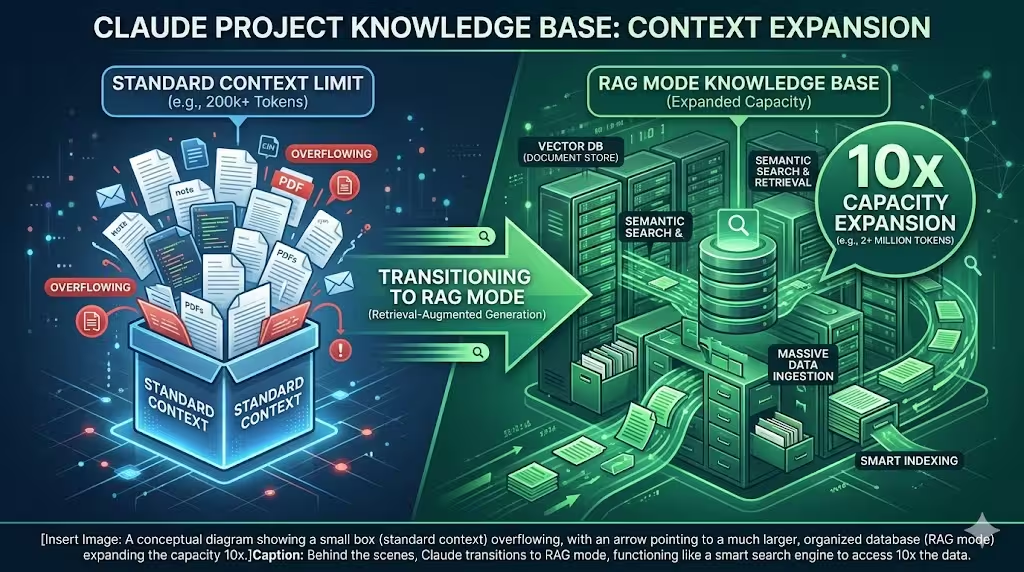
The answer is simple: Claude seamlessly enables RAG mode to expand capacity by up to 10x.
If you are on a paid plan (Pro, Max, Team, or Enterprise), Claude doesn’t just hit a wall. Instead, it quietly shifts gears in the background. It transitions your project from standard “in-context” memory to a Retrieval-Augmented Generation (RAG) system.
What exactly does that mean in plain English?
Think of Claude’s standard context window like a chef’s cutting board. Everything you upload is sitting right there on the board, immediately accessible. The chef can see it all at a single glance. But a cutting board only has so much space.
When your files start spilling off the edges of that board, Claude doesn’t throw the food away. Instead, it moves the extra ingredients into a highly organized pantry (RAG mode).
When you ask a question, Claude acts like a smart search engine. It zips into the pantry, scans through up to 10 times the normal amount of data, pulls out only the exact paragraphs or code snippets relevant to your question, and brings them back to the cutting board to give you an answer.
You don’t have to click any buttons. You don’t have to reconfigure your settings. The switch happens entirely behind the scenes, allowing you to keep uploading files long past the initial 200,000-token limit.
Why This is a Massive Win for Your Workflow
Before this feature rolled out, hitting the context limit was a nightmare. You had to play a tedious game of data Tetris—deleting an old PDF just so you could upload a new one, or manually splitting your documents into smaller chunks.
The automatic RAG expansion changes the way you can use the tool:
- You get a massive capacity bump: Expanding capacity by up to 10x means you can store entire corporate wikis, years of blog posts, or massive documentation libraries in a single project.
- The speed stays consistent: Because Claude is searching your files rather than trying to read the entire massive pile of documents for every single prompt, response times remain surprisingly fast.
- Quality is preserved: The system is smart enough to pull exactly what it needs. You get highly accurate answers without the AI getting confused by information overload (a common problem known as “context rot”).
Pro Tips for Managing Massive Claude Projects
Even though Claude seamlessly enables RAG mode to save the day, you shouldn’t just treat your project like a messy digital junk drawer. Because the AI is now searching through your files rather than reading them all simultaneously, how you organize your data starts to matter a lot.
Here are a few expert habits you should adopt to get the best results:
1. Stop Using Vague File Names
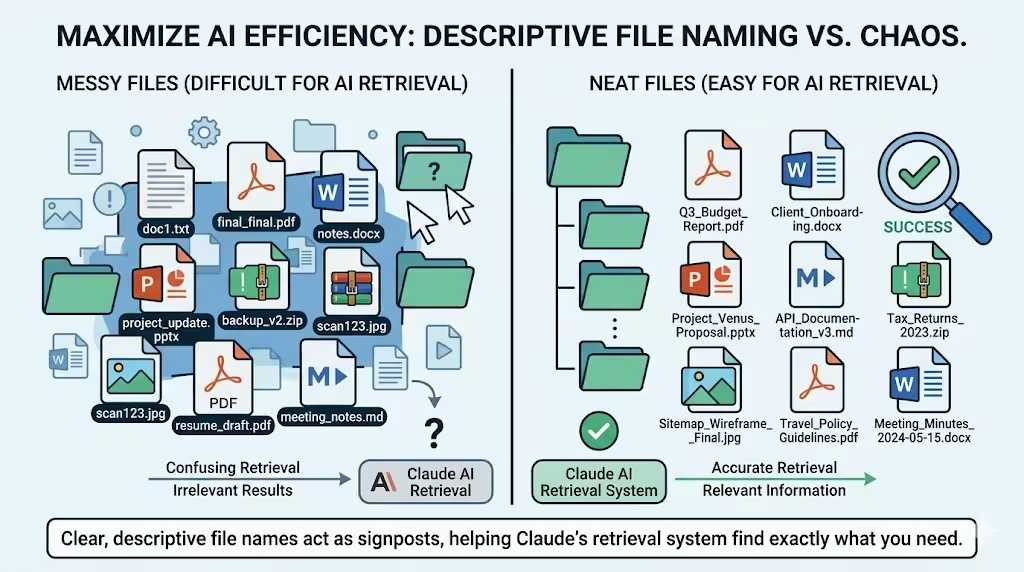
When Claude searches your files, it uses the file names as a major clue. If you upload twenty files named Document_Final_v2.pdf or notes.txt, you are making the AI work harder than it needs to.
Rename your files clearly before uploading them. Use titles like 2025_Q3_Marketing_Budget.pdf or User_Authentication_Code.py. This helps the retrieval system grab the right context on the first try.
2. Group Related Information
If you have a massive 500-page employee handbook, that’s fine. But if you only ever ask questions about the PTO policy, it’s actually better to upload the PTO policy as its own focused document. RAG systems thrive when they can pull distinct, highly relevant chunks of information.
3. Be Specific in Your Prompts
Once your project is huge and RAG mode is active, vague prompts can lead to vague answers. If you just say, “Summarize the project,” Claude might struggle to know which of your 150 files to look at.
Instead, tell it exactly where to look: “Look at the Q4 financial reports I uploaded and summarize the marketing expenses.” By guiding the AI, you ensure it retrieves the exact data you want.
4. Clean House Occasionally
Just because you have 10x the space doesn’t mean you should keep garbage in your workspace. If a file is completely outdated and you know you will never need it again, delete it. Less clutter means the AI has less noise to sort through when trying to answer your questions.
The Bottom Line
You don’t need to panic when your project starts getting heavy. You won’t be forced to start over, you won’t lose your older files, and you won’t be locked out of uploading.
As long as you are on a paid tier, the system is built to handle your largest workflows by silently activating RAG mode. Just keep your files neatly named, be clear with your instructions, and let Claude do the heavy lifting.